IBM Bob on macOS
On March, 24th 2026 - IBM released Bob, their new AI driven IDE. And from day one, some users reported strange issues where the IBM Bob IDE looks just like a plain Visual Studio Code installation with Bob on the “splash screen”.
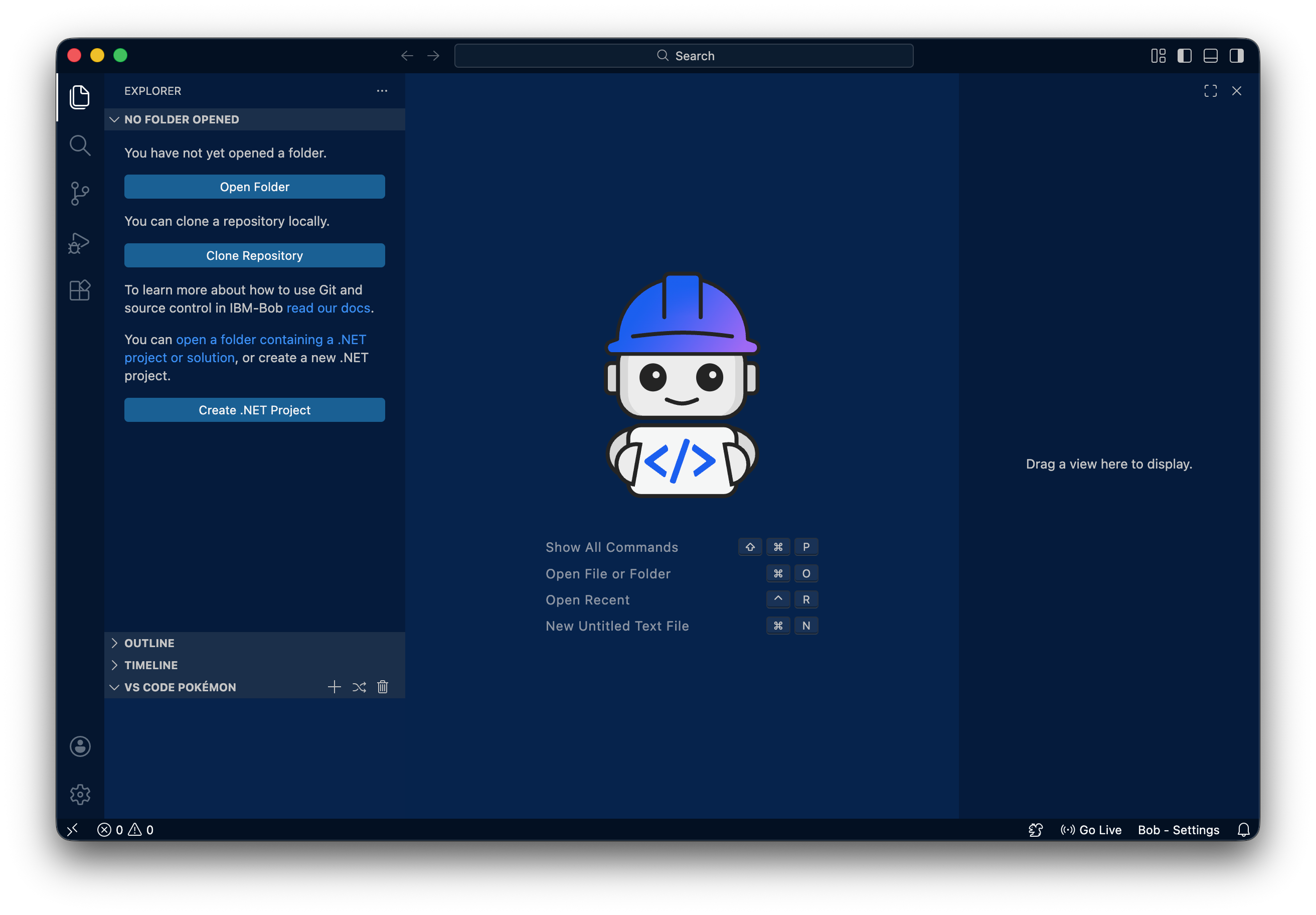
In that screen shot there is no Bob icon in title bar (right of the Search field) and the IBM BOB view is not visible.
If you see this, after you have installed IBM Bob, you are not alone - try the following steps to fix the issue.
The temporary(!) solution
We all hope, that IBM will address the problem with a fix soon - but as long as there is no fix, you can try this workaround:
-
Open Finder and go to the folder where you installed IBM Bob. Normally it should reside in the folder „Applications“.
-
Right click on the IBM Bob app and select „Show Package Contents“. As you maybe already know, applications on macOS are special directory structures - so called “Packages” - that contain all resources an app needs to run. With „Show Package Contents“ we dive into that directory structure.
-
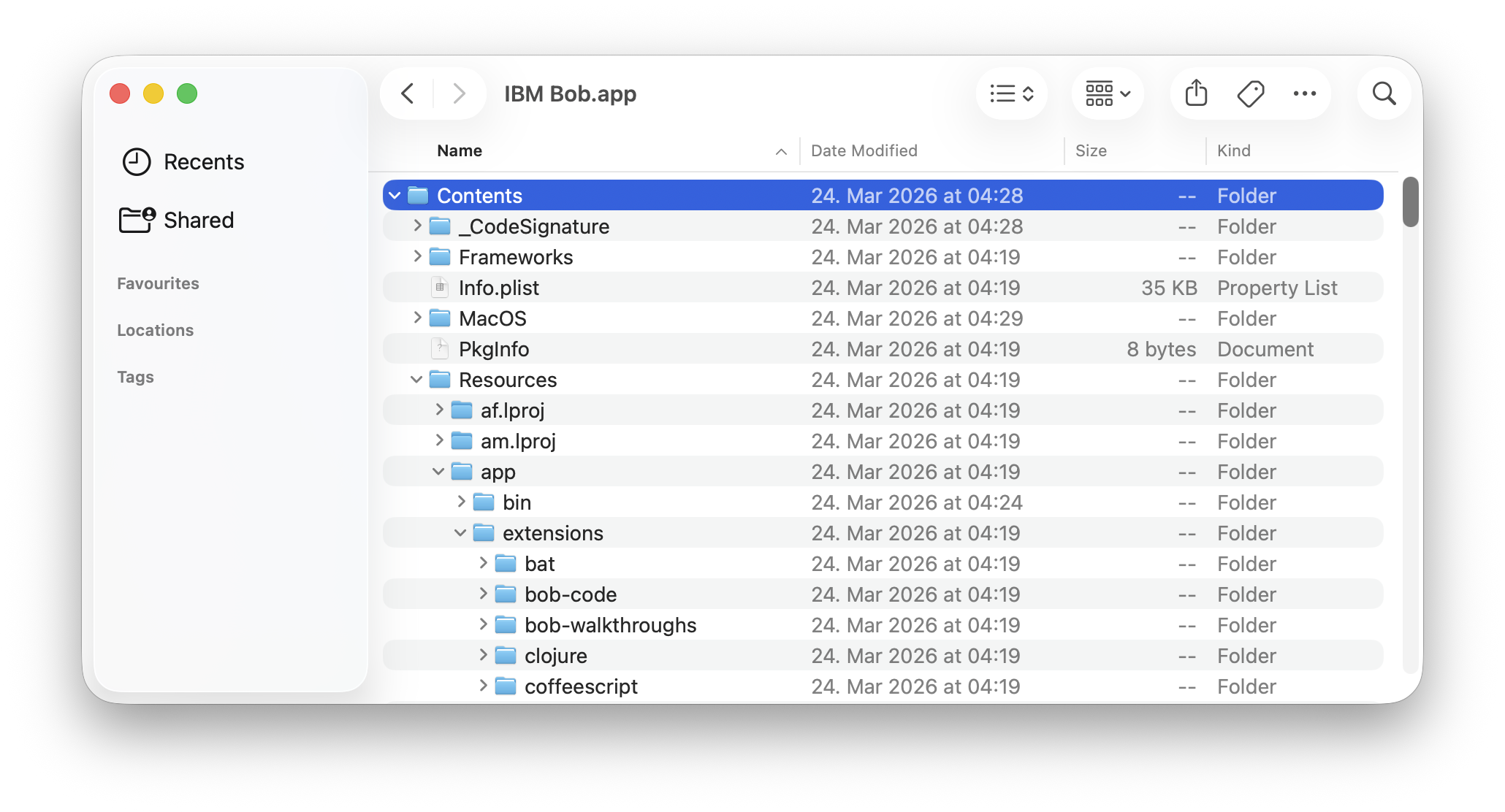
In the folder that opens, navigate to the sub-folder „Contents“, “Resources”, “app”, “extensions” and lokate the subfolder “bob-code”:
-
Right click on the folder “bob-code” and select “Get Info” from the context menu.
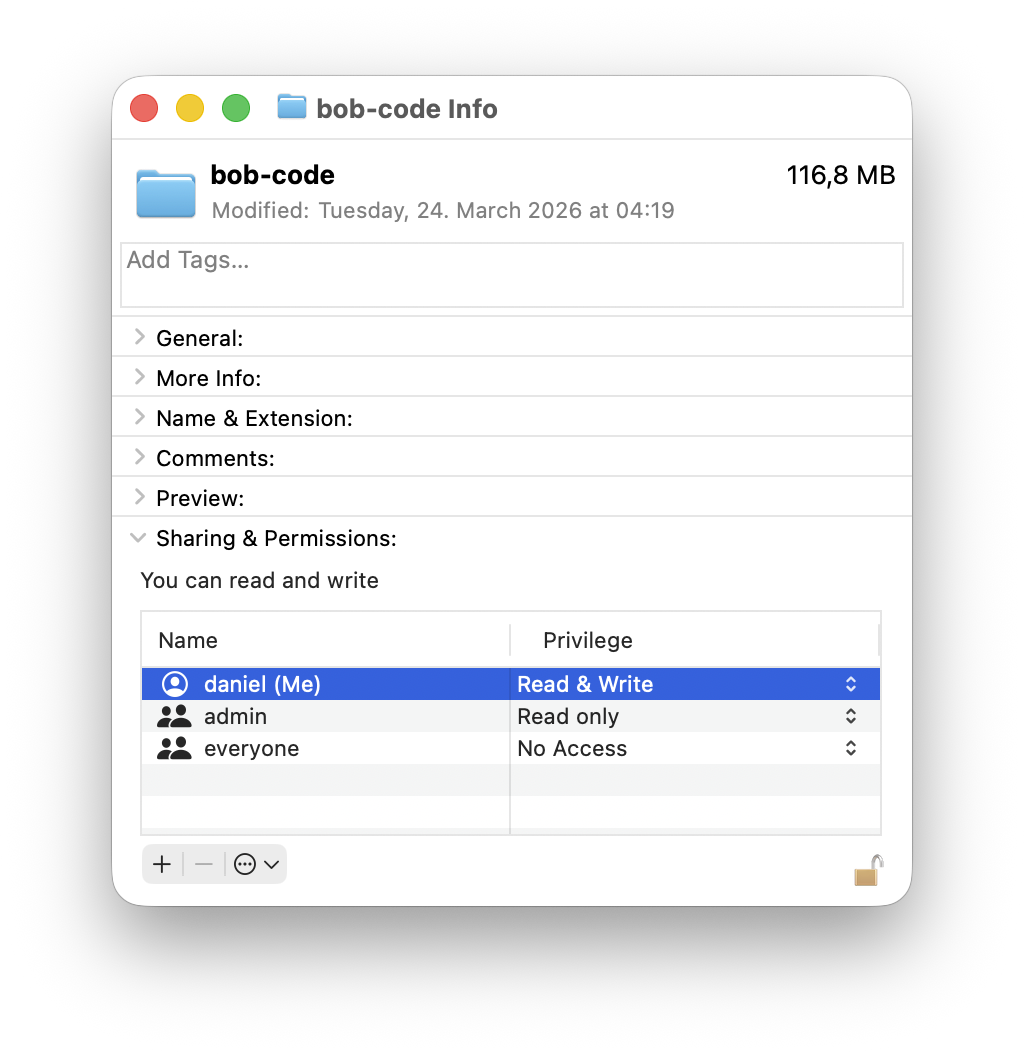 You see, that “everyone” has “No Access” to that folder - and those missing permissions seem to
be the problem. Close this Info window.
You see, that “everyone” has “No Access” to that folder - and those missing permissions seem to
be the problem. Close this Info window. -
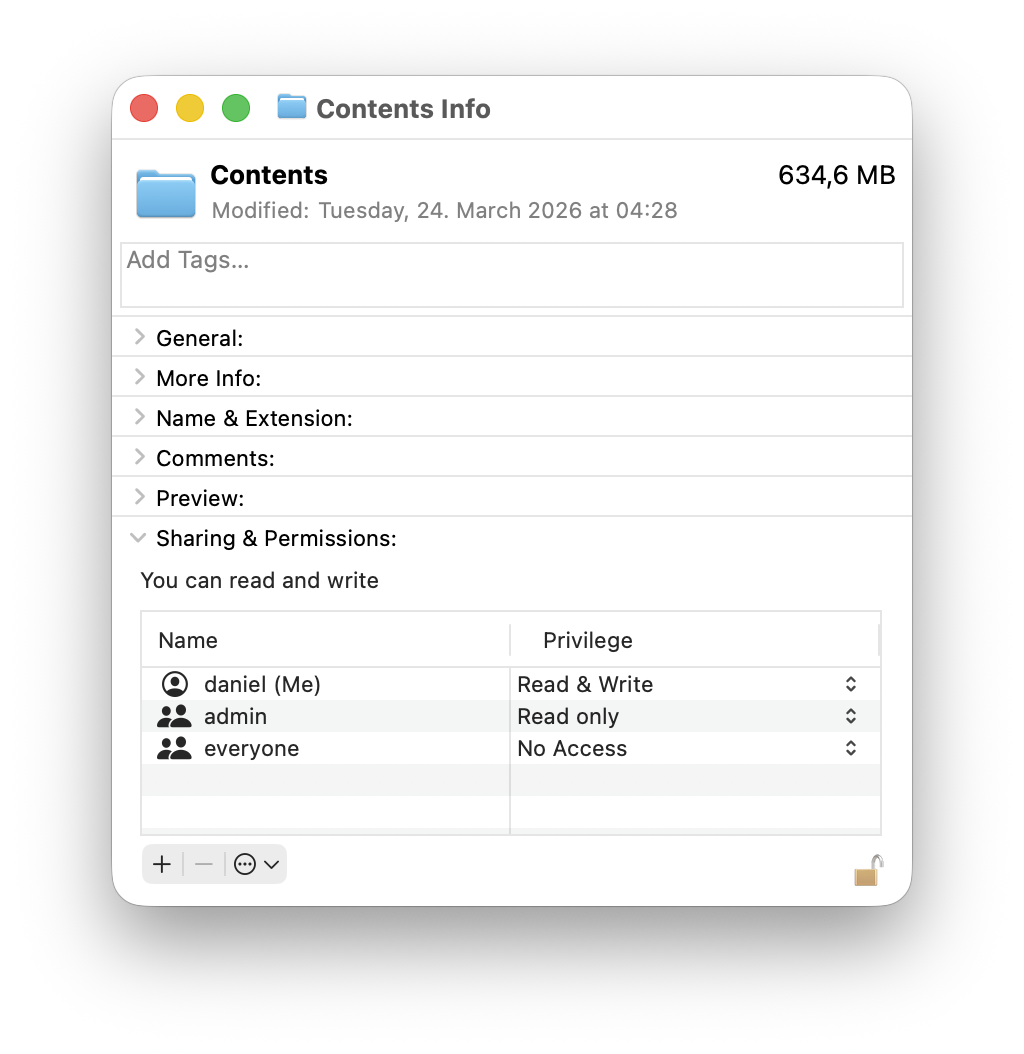
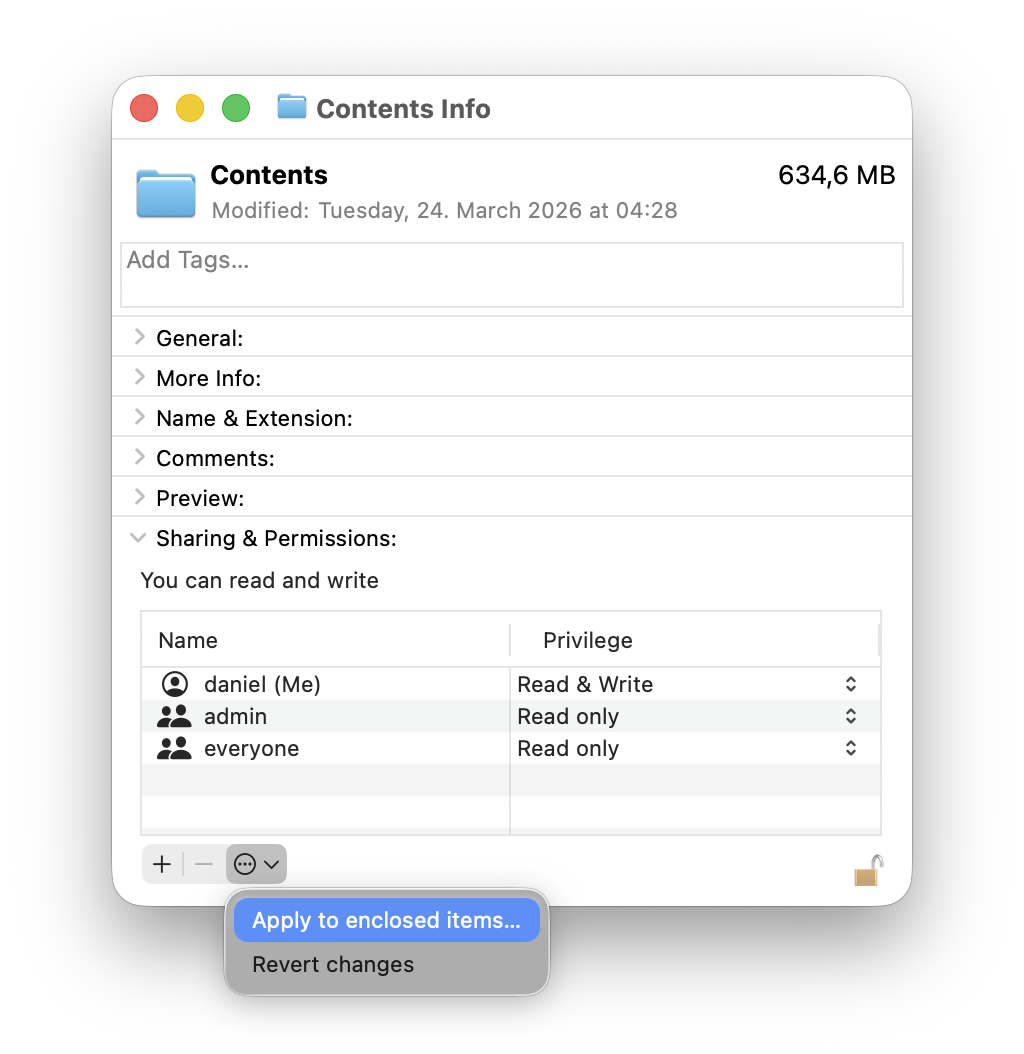
Now right click on the top sub-folder “Contents” and select “Get Info” from the context menu.
-
Click on the small lock icon in the lower right corner of the Info window and enter your password to make the permissions editable. The small lock has to be “open” to change anything.
-
Change the permissions for “everyone” to “Read Only”.
-
Click on small circle with the 3 dots and select the “Apply to enclosed items” and confirm it. This may take some seconds, as the permissions are now written to all subfolders and files in the application package.
-
Close the Info window and your Finder window and try start the IBM Bob app again. It should work now.
An alternative way to change the permissions is to use the command line tool chmod - open a Terminal window and enter the following command:
$ sudo chmod 0755 -R "/Applications/IBM Bob.app"
If you renamed the app to something else, replace “IBM Bob.app” with the name of your app. The -R flag means “recursive”, so it will change the permissions for all subfolders and files. The 0755 is the octal representation of the permissions, which means “read, write and execute for the owner, read and execute for the group and others”.
I hope this helps! Let me know if you have any questions.