Tips and Tricks for RDi 9.9
Installation
The installations works the same way, as with RDi 9.8. So if you want to know more, just read my posts about this:
Most of the tips and tricks are still valid - but also read the following tips which are special for RDi 9.9.
Problems with special or national characters in the source code?
I’m from Germany, and we have a few national characters which occationally also end up in our sources.
But sometimes we also have problems with chars like # in our RPG sources, which are caused by the new
Java runtime, that RDi 9.9 is using. The new JRE uses UTF-8 as it’s default, but RDi still depends on
Windows Code Page 1252.
In that case, LPEX marks perfectly fine code as incorrect - but the code compiles without problems.
You simply have to make a change in your RDi.ini, which you find in the installation directory of RDi 9.9:
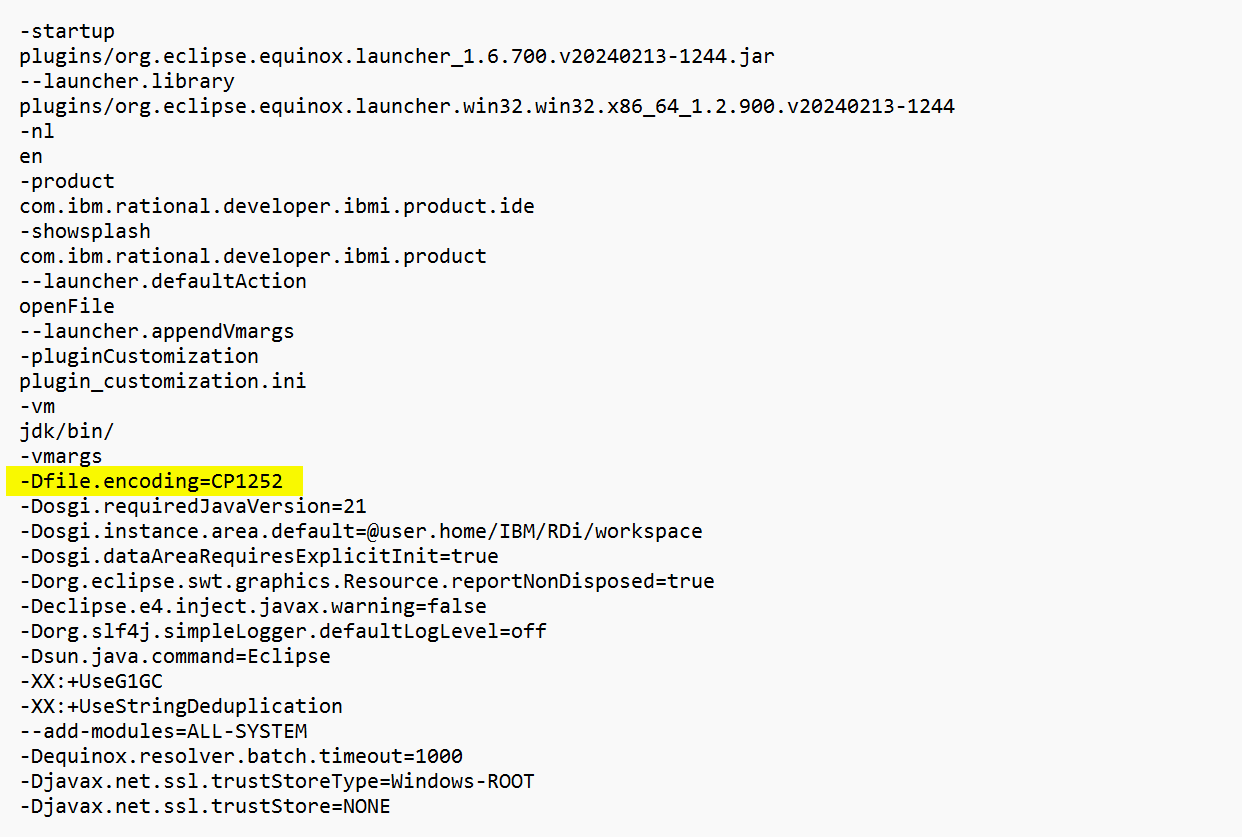
Insert this directly after the line `-vmargs’:
-Dfile.encoding=CP1252
It seems that people in the US and UK don’t have this problem - so just test, if you have syntax errors flagged in LPEX which compile fine - this might be your solution.
RDi UI langague
The national language translations for RDi are quite good - much better than back at version 9.8.0.0. But even as I work in Germany, I like my RDi in English.
To use RDi 9.9 in English, you also have to edit your “RDi.ini”:
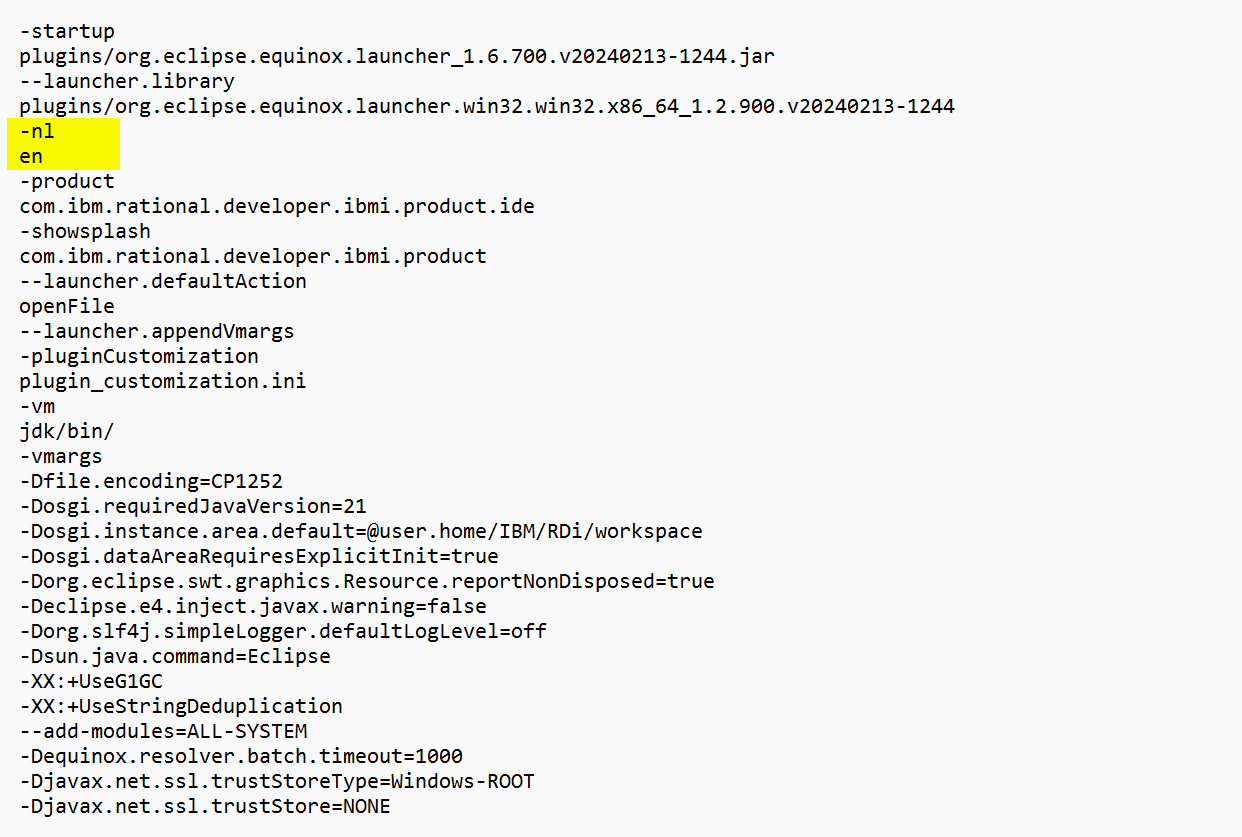
Adter the line plugins/org.eclipse.equinox.launcher.win32.win32.... just add the followinf 2 lines:
-nl
en
To be continued …
Mit den diesen beiden Zeilen wird RDi 9.9 auf die Default-Sprache Englisch gesetzt.